


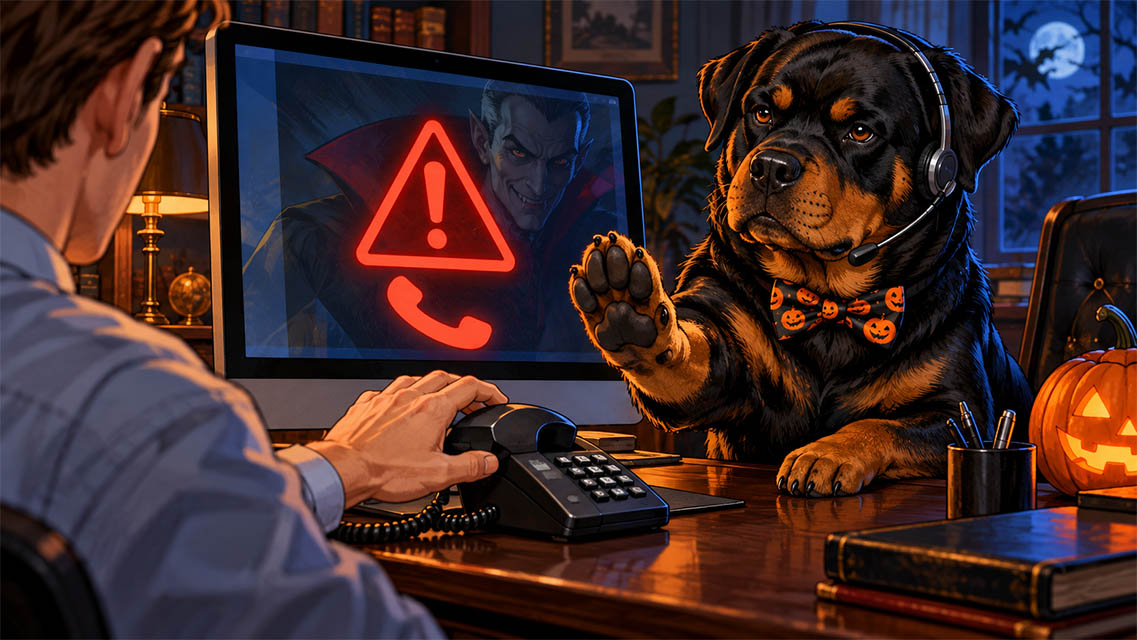
You’re halfway through your workday when your computer starts screaming.
A warning fills the screen. A voice tells you your files are at risk. There’s a phone number to call, and apparently, you need to call it right now.
Well, that’s one way to get your attention.
Before you pick up the phone, take a breath. This could be a tech support scam and the person offering to rescue your computer may be the one you need to keep out.
In vampire stories, trouble often starts with an invitation. Fake tech support works on a similar idea: convince you to open the door, then walk right in.
This Halloween, let’s make sure that door stays closed.
How Fake Tech Support Gets Its Foot in the Door
A tech support scam is an attempt to trick you into paying for unnecessary help, sharing sensitive information, or giving a stranger access to your computer.
The costume might be a familiar company logo, a professional-sounding voice, or a message that looks official. Scammers can spoof caller ID and use fake browser warnings to make their stories convincing. Sometimes the “emergency” is nothing more than a web page pretending to be a system alert. Microsoft Support
The goal is to get you worried enough to follow instructions before you check who is giving them.
Five Signs You May Be Dealing With a Tech Support Scam
1. A Pop-Up Tells You to Call Immediately
A message claiming your computer is infected and directing you to a support number is a major red flag.
Microsoft states that its genuine error and warning messages do not include phone numbers. Don’t call the number in the warning or click its buttons. Microsoft Support
A loud alert deserves a calm response.
2. An Unexpected Caller Claims to Be Microsoft
Someone calls out of the blue and says they detected a problem on your computer. They sound helpful. They might even know what operating system you use.
That doesn’t establish who they are.
Microsoft says it does not make unsolicited calls offering to fix your computer. Hang up and contact your trusted IT provider through a number or support portal you already know.
3. They Want Remote Access Before You Verify Them
Remote support is a normal part of IT service. At GCNS, it helps us assist clients without an onsite visit.
But remote access is also a powerful tool in the wrong hands.
Before approving an unexpected session, independently confirm the request with your IT provider. A familiar name, logo, or remote support application is not enough to prove the person using it is legitimate.
Think of it as checking who’s at the door before handing over the keys.
4. They Need Your Password or Verification Code
An unexpected “technician” asks for your email password, a text-message code, or approval of a sign-in notification.
Pause.
Don’t read out a verification code or approve an MFA request just because someone on the phone tells you to. Contact your IT provider through your usual support channel to confirm what is happening.
5. The Fix Involves Gift Cards or Your Bank Account
The conversation moves from your computer to buying gift cards, sending cryptocurrency, or opening online banking while someone watches.
End the interaction.
Another version begins with a fake subscription-renewal invoice. You call to dispute the charge, and the supposed refund requires access to your computer or banking information. The FTC warns about this tactic. Consumer Advice
Your bank account should not be part of a mystery computer repair.
What to Do When a Fake Security Warning Appears
If you haven’t granted access or installed anything, start here:
- Don’t call the displayed number. Don’t download the offered “fix.”
- Close the browser tab or window. If it won’t close normally on Windows, use Ctrl + Shift + Esc to open Task Manager and end the browser task.
- Avoid reopening the suspicious page. If the browser offers to restore your previous session, don’t restore that tab.
- Contact your trusted IT provider. Use a saved number, bookmark, or your established support portal.
A scary browser message alone does not prove that your computer is infected. If you’re unsure what happened, have IT check it rather than guessing. The FTC recommends contacting a company you know and trust using its official contact information. Consumer Advice
Already Let Someone In? Here’s What to Do Next
If you approved remote access, installed software at their request, or shared account information, tell your IT provider immediately.
For a business computer, a practical first response is:
- End the call and disconnect the computer from the network. Turn off Wi-Fi and unplug Ethernet to interrupt remote connectivity.
- Contact IT from another device. Explain what happened and what you clicked, installed, shared, or paid.
- Preserve the details. Keep the message, phone number, receipt, and approximate time. Let IT guide the cleanup.
- Secure affected accounts from a trusted device. If you shared a password, change it and change it anywhere you reused it. Ask IT to review account access and active sessions.
- Contact your bank or payment provider if money or financial details were involved. Use its official contact information.
- Report the scam at ReportFraud.ftc.gov.
The FTC advises changing exposed passwords, including reused passwords, and reporting tech support scams. Consumer Advice
Closing the remote session doesn’t establish that everything is safe. Your IT provider should assess what access the person had and what needs to happen next.
And please don’t let embarrassment delay that call. We would much rather hear, “I think I clicked something,” while there’s still time to act. Your IT provider should assess what access the person had and whether recovery planning is needed.
Help Your Team Keep the Door Closed
Give employees a simple rule:
If someone unexpectedly asks for access, credentials, or payment, stop and verify through a known channel.
Make sure your team knows how to reach IT and feels comfortable reporting a suspicious interaction. A quick check should be part of the workday, not something employees worry they’ll get in trouble for doing.
Your existing IT provider may legitimately contact you about a monitored issue. That’s why verification matters: call back through your established support channel before approving an unexpected request.
Keep the Vampires in the Halloween Videos
We’re happy to let Dracula cause a little trouble in the GCNS Halloween videos. Your business network is a different story.
GC Network Solutions helps businesses across Metro Atlanta with IT support, cybersecurity, and recovery planning. If something on your screen or someone on the phone doesn’t feel right, reach out through your usual GCNS support channel.
Before you invite someone into your computer, make sure you know who’s knocking.